Delivery Logs & Errors
Every delivery, successful or failed, is logged. This lets you diagnose problems quickly and trigger deliveries again when needed.
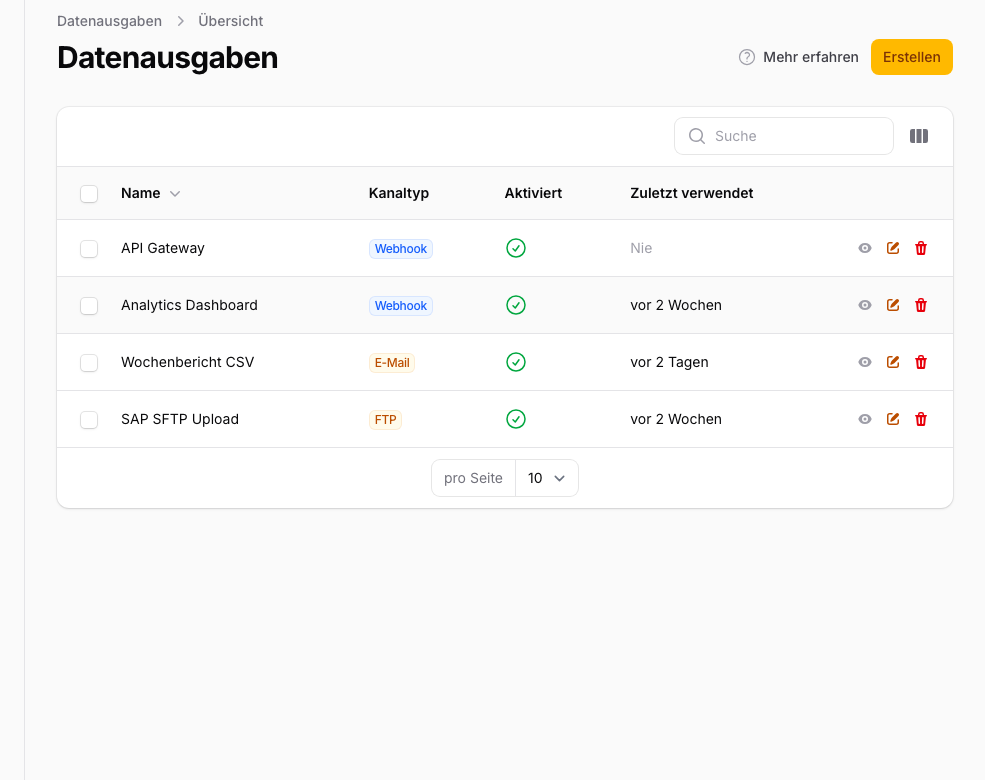
View Logs
Go to Data → Integrations, open the connection, and click Delivery Logs next to the meter you are interested in under Assigned meters. You will see a chronological list of all delivery attempts for that meter with status, timestamp, and details.
Status Meanings
| Status | Meaning |
|---|---|
| Success | Delivery was acknowledged by the target with a 2xx response |
| Failed | Delivery has permanently failed (after all retries) |
| Retrying | Delivery failed; further attempts are pending |
| Pending | Delivery is in the queue and has not been processed yet |
Error Diagnosis
For failed deliveries, the log shows the HTTP status code (for webhooks) or the error message (for MQTT). Common causes:
- 4xx (e.g. 401, 403): Authentication failed. Check your token or signing secret.
- 5xx: Server error on the recipient's side. Wait for availability or contact the system operator.
- Timeout: The target is responding too slowly. Check the reachability and performance of the endpoint.
- MQTT connection error: Broker unreachable or credentials incorrect.
Automatic Deactivation
After 5 consecutive failures, the connection is automatically deactivated. You will receive a notification. New readings will not be delivered for this connection until you reactivate it.
To reactivate a deactivated connection:
- Go to Data → Integrations.
- Open the deactivated connection.
- Fix the issue (e.g. update the URL or credentials).
- Switch Enabled back on and save the connection.
Resend Deliveries
Open the connection and click Resend next to the affected meter under Assigned meters. Pick a start and an end date: every reading in that period is delivered again for that meter. This is useful when the recipient was temporarily unavailable.
Test vs. Live Deliveries
Deliveries triggered via the Send Test button are marked as test deliveries in the log. They count towards the failure counter for automatic deactivation just like live deliveries: a failed test delivery also brings the connection closer to being switched off.
