Scheduled exports
Available from the Light plan.
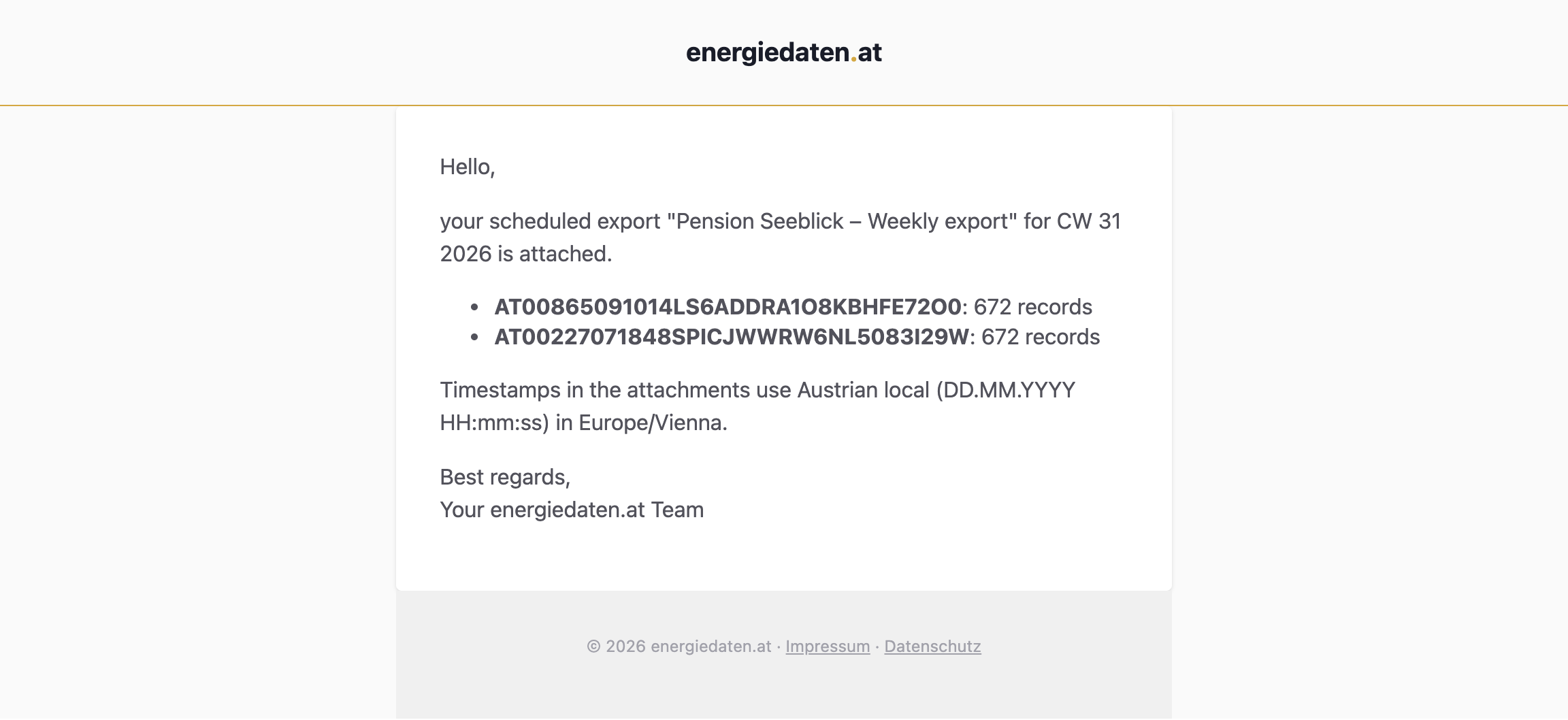
A scheduled export sums up one closed period as a CSV or XLSX file and emails it to you, your team, or your customers: for accounting, a client, or your own records. Once the week, month, or quarter is over, the scheduled export is created and sent.
Scheduled export or integration?
Both send files by email. The difference is the purpose:
| Integration | Scheduled export | |
|---|---|---|
| Job | Keep another system supplied with your data | Give someone the numbers for a closed period |
| Data | New values as they arrive | One closed period as a whole |
| Cadence | Ongoing | Once per closed period |
| Audience | Systems and developers | Business users, accounting, customers |
Rule of thumb: if a system or partner keeps consuming the data, use an integration such as Email & CSV delivery. If someone needs the numbers for a closed period, use a scheduled export.
Create a scheduled export
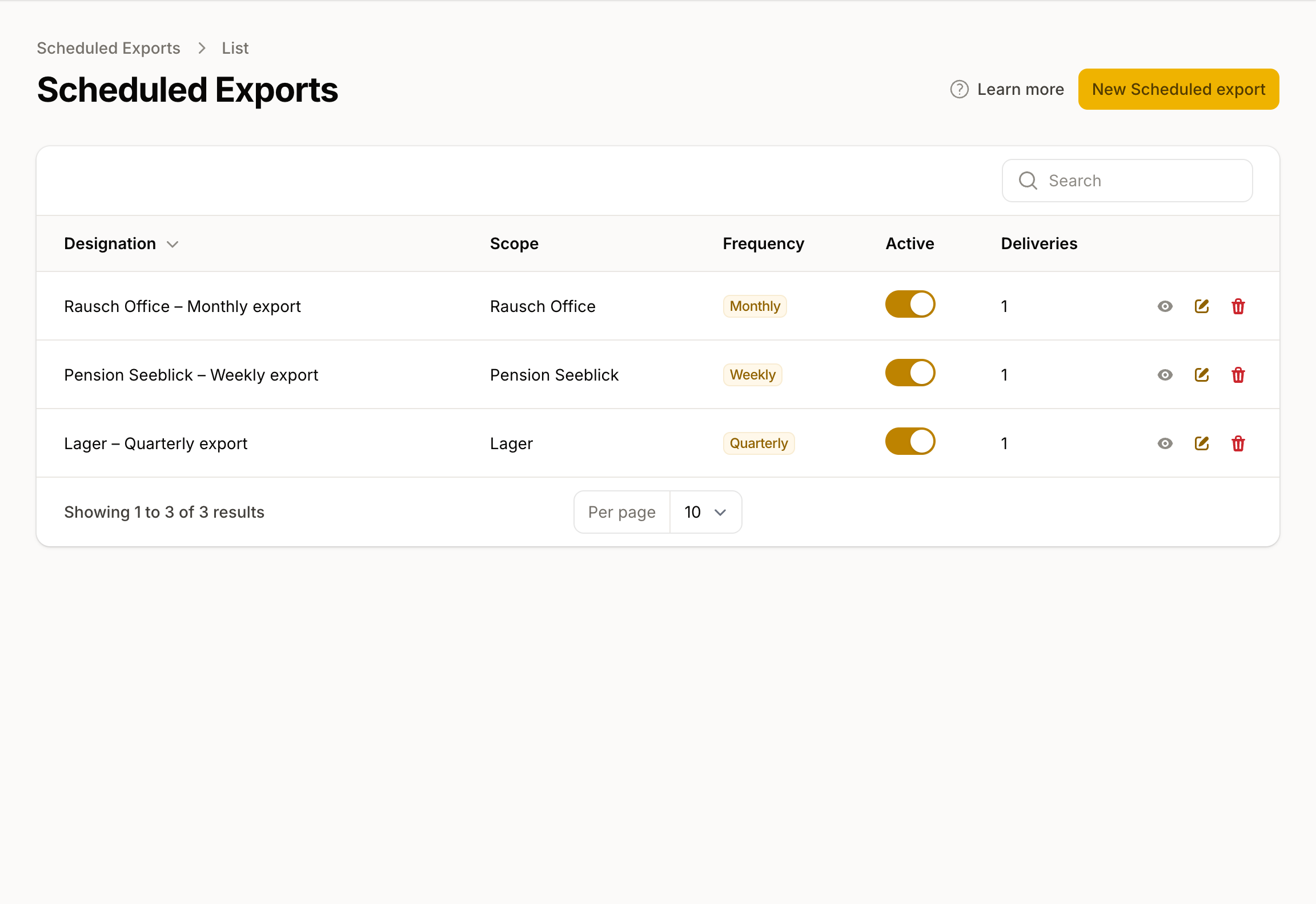
- Open Data → Scheduled exports and click Create.
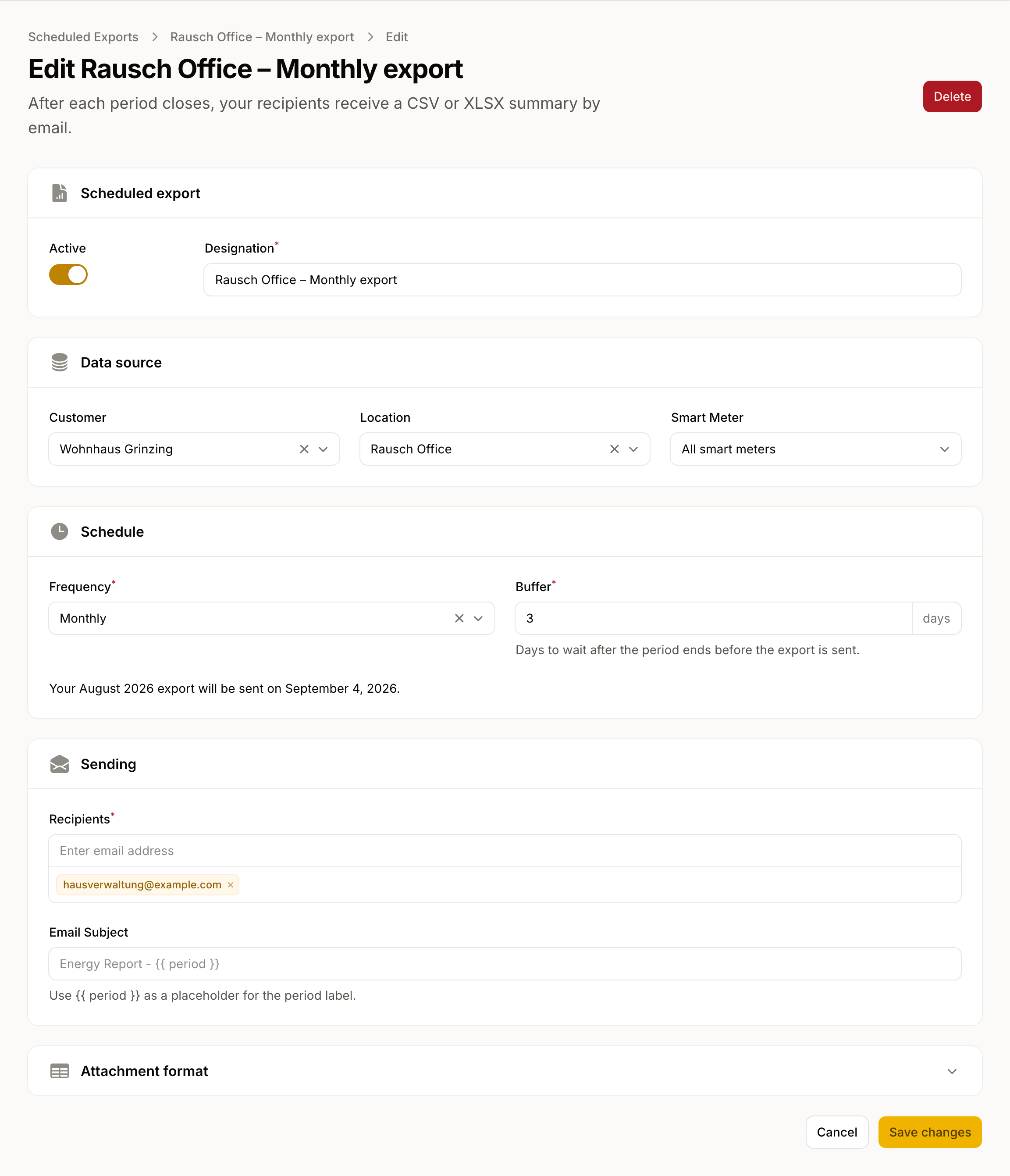
- Under Data source, choose the scope: a single Smart Meter or a Location. Locations bundle all of their meters. From the Plus plan upwards, Customer is available as a scope too.
- In the Schedule section, choose the Frequency: weekly, monthly, or quarterly.
- Set the Buffer in days: how long to wait after the period ends before the scheduled export is sent. This window lets late corrections from the grid operator still reach the data. The default is two days.
- Under Sending, add the Recipients. Optionally set an Email Subject with the placeholder
{{ period }}for the period label. - The Attachment format section is collapsed and comes with sensible defaults. Expand it to change the File format (CSV or XLSX), the Timestamp format, the Timestamp timezone, or the CSV separators.
The number of active scheduled exports per data source is capped: one on Light, two on Plus, five from Pro upwards. When you reach the cap, we tell you on save.
One file or one per meter
When the data source covers several meters (a location or a customer), the Combine all meters into one file toggle controls how the data arrives: one shared file, or one file per meter. For a single meter, this choice does not apply.
Send a past period
If you need an already-closed period right away, trigger it with the Send period action on the scheduled export. The scheduled export is re-queried at send time, so later corrections are included too.
What recipients get
The email lists each meter it covers with the number of readings in the period. Attached is one file per meter or, for combined scheduled exports, a single shared file — in the format you chose under Attachment format.