Managing Team Members
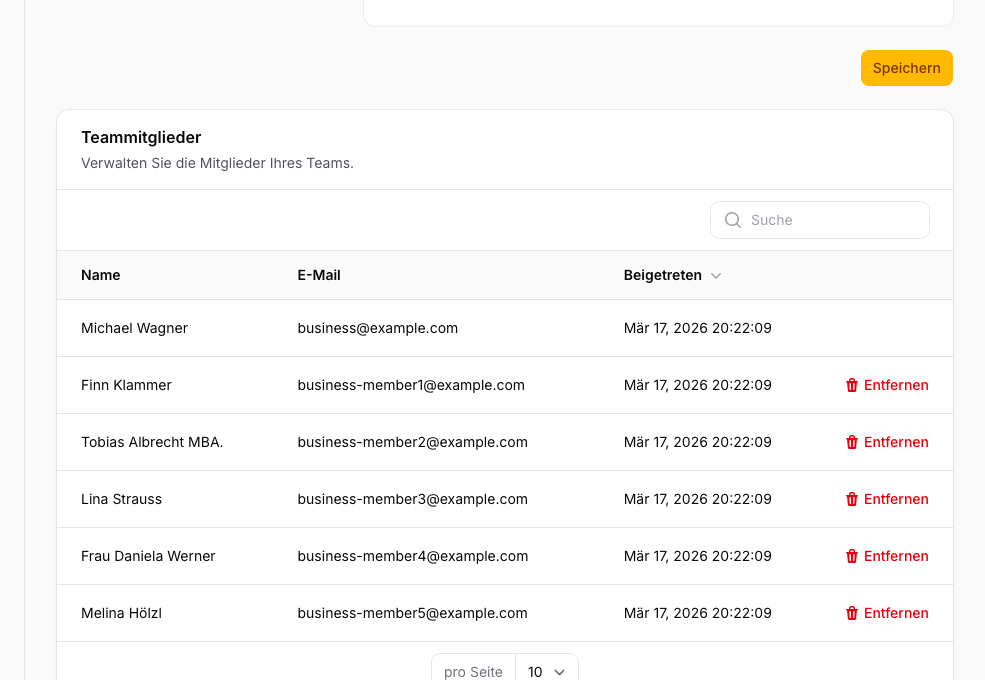
Multiple people can access the same team together. The number of concurrent members depends on your plan.
Member Limits by Plan
| Plan | Members |
|---|---|
| Community | 1 |
| Light | 2 |
| Plus | 5 |
| Pro | 10 |
Inviting a Member
- Open Team Settings from the team switcher in the sidebar.
- Click Invite Member.
- Enter the email address and select a role.
- Click Send Invitation.
The invited person receives an email with an invitation link. The link is valid for 7 days.
Roles
| Role | Permissions |
|---|---|
| Admin | Full access: meters, integrations, settings, invite and remove members |
| Member | View meters and data, no administrative functions |
A team always has exactly one Owner — the person who created the team. The owner has admin rights and cannot be removed.
Pending Invitations
In Team Settings you can see pending invitations with their status and expiry time. You can revoke or resend an invitation at any time.
Removing a Member
- Open Team Settings and go to the members table.
- Click Remove next to the member.
- Confirm the action.
The removed member loses access to the team immediately. Data and settings are retained.
